
What Is MIDI Input and How Does It Work
What Is MIDI Input?

Content
Content
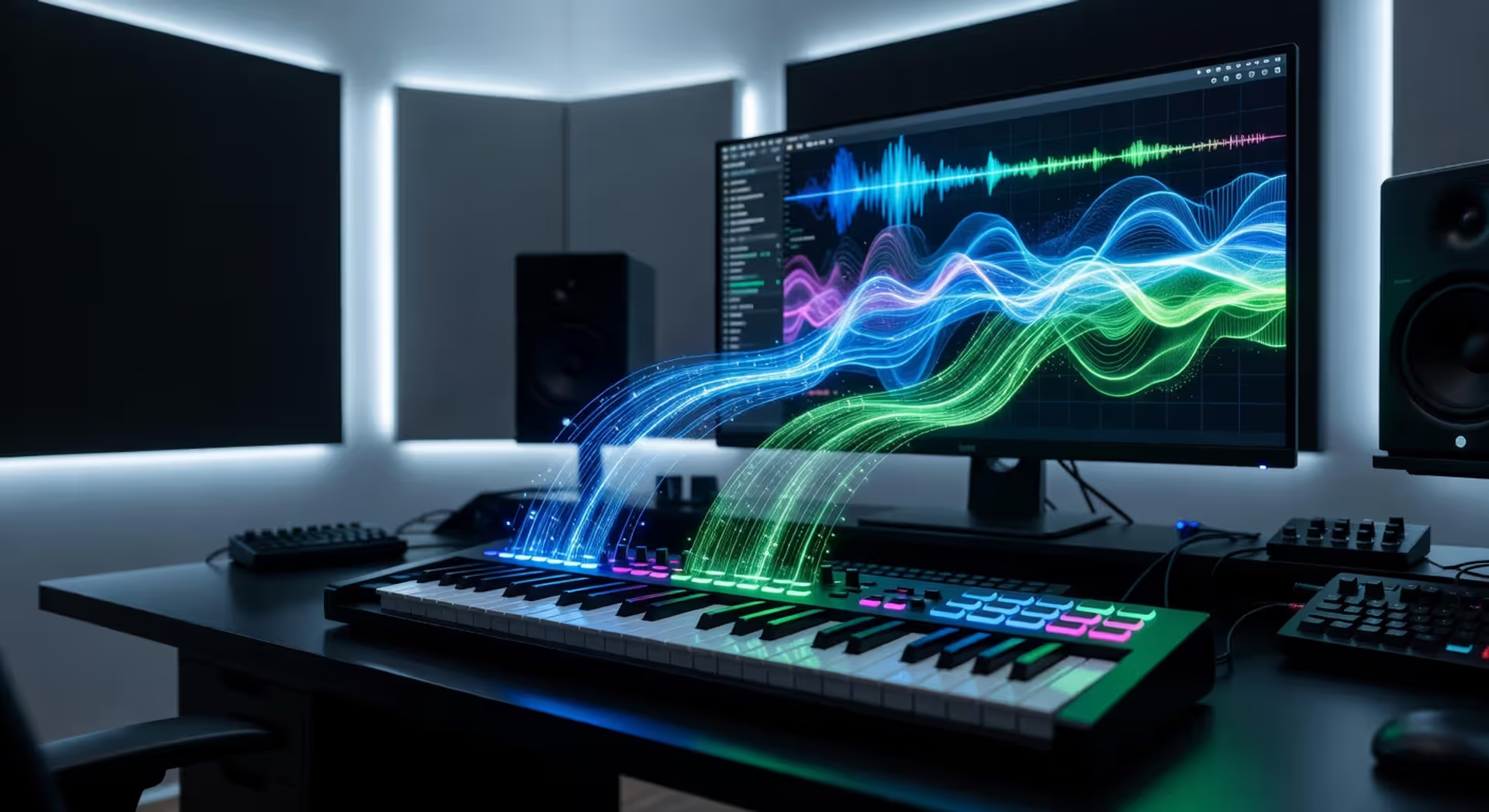
MIDI input is the gateway that lets your computer, synthesizer, or recording device understand what you're playing. When you press a key on your MIDI keyboard or tap a drum pad, you're not sending sound—you're sending instructions. Think of it as musical Morse code: a stream of digital commands that tell receiving devices which notes to play, how hard to hit them, and when to stop.
Most beginners assume MIDI carries audio. It doesn't. That's the single most important thing to understand about what MIDI input is. You're transmitting performance data, not waveforms. This distinction opens up editing possibilities that audio alone can't match.
Understanding MIDI Signals and Data Transmission
MIDI stands for Musical Instrument Digital Interface. It's a protocol—a language that music gear speaks to communicate performance information. When you play a note on a MIDI controller, the device converts your physical action into a series of digital messages. These messages travel through cables or wireless connections to whatever's listening.
The data itself is remarkably compact. A single MIDI note message contains just three pieces of information: which note you played (pitch), how hard you hit it (velocity), and which MIDI channel it's on. When you release the key, another message goes out: note off. That's it. No audio waveform, no frequency data, no sound file.
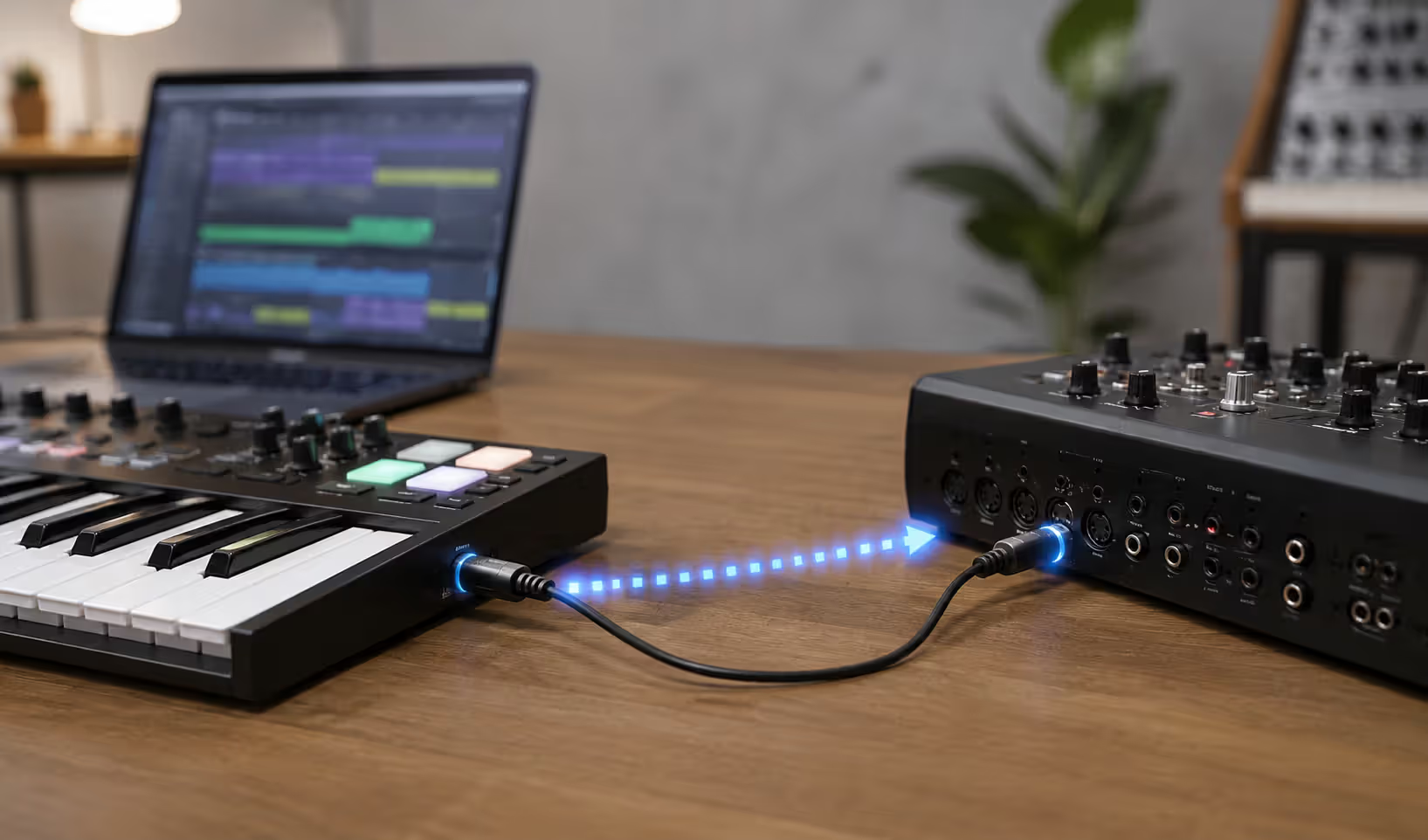
Understanding MIDI signals means recognizing they're event-based. Each action you take—pressing a key, turning a knob, moving a pitch wheel—generates a specific message. These messages flow in one direction: from the MIDI Out port of your controller to the MIDI In port of your receiving device. The receiving device interprets those instructions and generates sound based on its own internal or loaded sounds.
The digital nature of MIDI makes it lossless and editable. Unlike audio recordings that capture actual sound waves, MIDI note data can be transposed, quantized, stretched, or completely rearranged without any quality degradation. You're working with instructions, not recordings.
One common mistake: thinking MIDI quality varies like audio quality does. It doesn't. MIDI data is binary—either the message arrives intact or it doesn't. There's no such thing as "high-quality" versus "low-quality" MIDI input in terms of data transmission. What varies is timing precision and the quality of the sound generator that responds to those MIDI messages.
MIDI revolutionized music production not because it transmitted sound, but precisely because it didn't. By separating performance data from sound generation, we gave musicians the ability to compose, edit, and produce in ways that were physically impossible with tape-based recording.
— Schmidt Robert
How MIDI Input Works in Your Setup
Here's the practical flow. You connect a MIDI controller to your computer or hardware device. When you press a key, the controller's internal processor detects the physical action and converts it into a MIDI message. That message travels through the connection—whether it's a traditional 5-pin MIDI cable, USB, or wireless protocol—and arrives at the receiving device's MIDI input port.
The receiving device constantly monitors its MIDI input for incoming messages. When a message arrives, the device's software or firmware reads the data: "Note 60 (middle C), velocity 87, channel 1, note on." The device then triggers its sound engine to play the corresponding note at the specified velocity. When the note-off message arrives, the sound stops or begins its release phase.
This happens fast. MIDI's original specification from the early 1980s was designed to keep latency below human perception thresholds for most playing styles. Modern USB-MIDI implementations have reduced latency even further, typically to just a few milliseconds.
Author: Miles Arbordale;
Source: lamat-records.com
Receiving MIDI messages doesn't require audio processing power. That's a key advantage. Your computer's CPU can handle thousands of MIDI events without breaking a sweat, while audio processing can quickly max out system resources. This is why you can run complex arrangements with dozens of virtual instruments—the MIDI data itself is incredibly lightweight.
MIDI ports come in three types: In, Out, and Thru. MIDI In receives messages. MIDI Out sends messages from the device. MIDI Thru is a passthrough that copies whatever arrives at MIDI In and sends it out unchanged, letting you chain multiple devices together. USB connections often handle bidirectional communication on a single cable, simplifying the setup considerably.
One pattern I see most often in home studios: users connect everything via USB and forget that traditional MIDI ports exist. USB is convenient and powers the controller simultaneously, but dedicated MIDI interfaces can reduce latency and offer more stable connections for complex setups with multiple hardware devices.
MIDI Input vs Audio Input: Key Differences
The confusion between MIDI and audio input is understandable—both involve music, cables, and computers. But they're fundamentally different technologies serving different purposes.
| Feature | MIDI Input | Audio Input |
| Data Type | Performance instructions (note numbers, velocity, timing) | Actual sound waves captured as digital audio |
| File Size | Extremely small (kilobytes for entire songs) | Large (megabytes per minute of recording) |
| Editability | Complete: change pitch, timing, velocity, instrument sounds | Limited: can process but can't change individual notes cleanly |
| Latency | Very low (1-5ms typical) | Higher (5-20ms+ depending on buffer settings) |
| Use Cases | Composing, arranging, triggering virtual instruments, controlling parameters | Recording vocals, guitars, live instruments, mixing, final output |
| Quality Factors | Timing precision only; no audio quality concerns | Sample rate, bit depth, preamp quality, room acoustics |
| Typical Devices | MIDI keyboards, pad controllers, control surfaces, drum machines | Microphones, guitar cables, line-level instruments, audio interfaces |
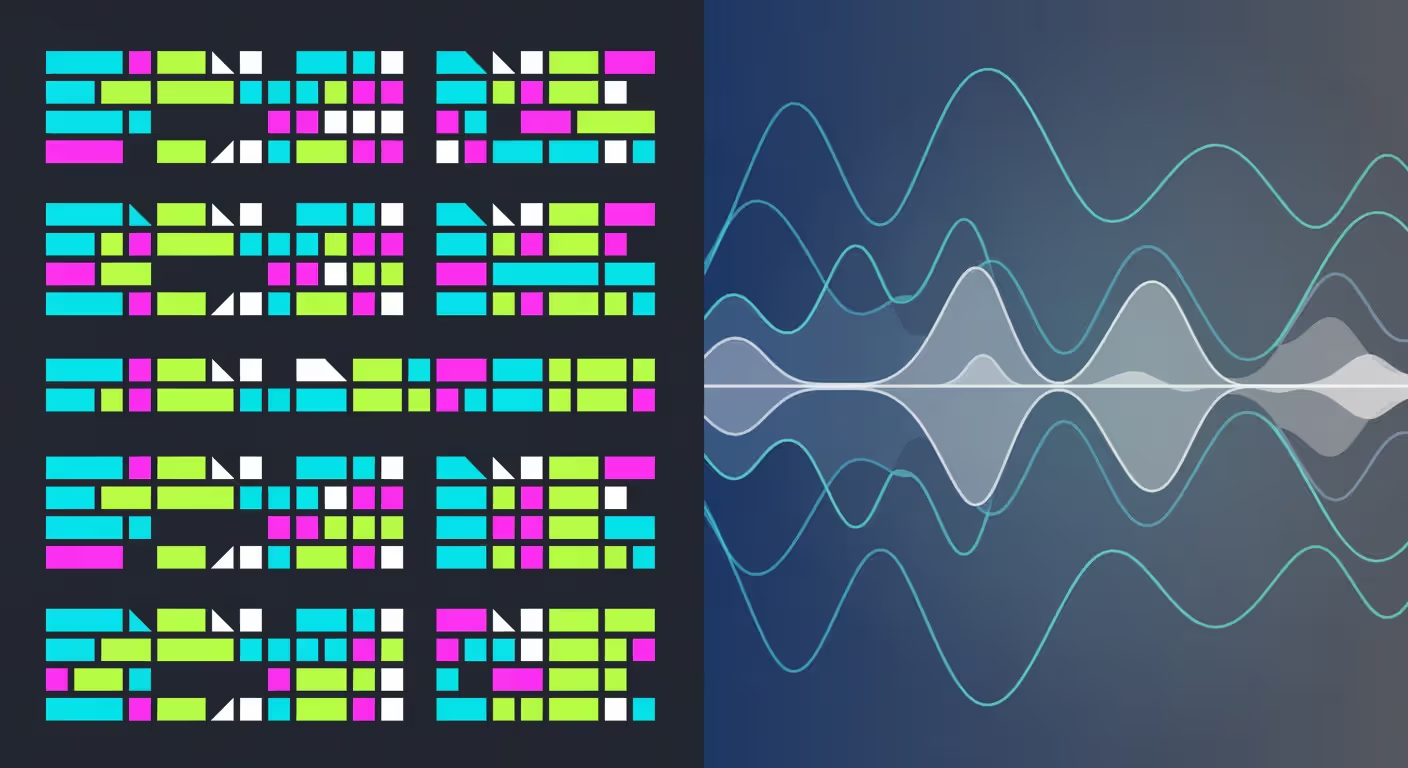
Audio input captures what's actually happening in the air—pressure waves converted to electrical signals and then to digital samples. MIDI input captures your intent: which notes you meant to play, how you wanted to play them. This distinction matters tremendously in production workflows.
Author: Miles Arbordale;
Source: lamat-records.com
When to Use MIDI Input
MIDI input shines when you're composing, arranging, or working with virtual instruments. If you're building a track from scratch, MIDI lets you experiment freely. Played something slightly out of time? Quantize it. Want to hear that melody on a different instrument? Just change the sound source. Realized the whole song should be two semitones higher? Takes two seconds.
Use MIDI input for:
- Programming drums and percussion
- Playing software synthesizers and samplers
- Sketching musical ideas quickly
- Creating orchestral arrangements with sample libraries
- Controlling plugin parameters in real-time
- Building electronic music where timing precision matters
MIDI also excels when you need to control multiple instruments simultaneously. One keyboard can trigger three different synthesizers, each playing different sounds, all from a single performance. Try doing that with audio.
When to Use Audio Input
Audio input is non-negotiable when you're recording actual sound sources. Vocals, acoustic guitars, amplified electric guitars, live drums, analog synthesizers—anything that makes sound needs to go through audio input to be captured.
Use audio input for:
- Recording singers and vocalists
- Capturing acoustic instruments
- Tracking electric guitars through amplifiers
- Recording hardware synthesizers and drum machines
- Sampling real-world sounds
- Final mixdown and mastering stages
The simpler option usually wins here: if it makes sound and you want to capture that specific sound, use audio input. If you're triggering sounds that exist inside your computer or other digital devices, use MIDI input.
Many producers use both simultaneously. You might record a guitar part through audio input while triggering a bass synth via MIDI input, all in the same session. Modern DAWs handle this seamlessly.
Common MIDI Input Devices and Connections
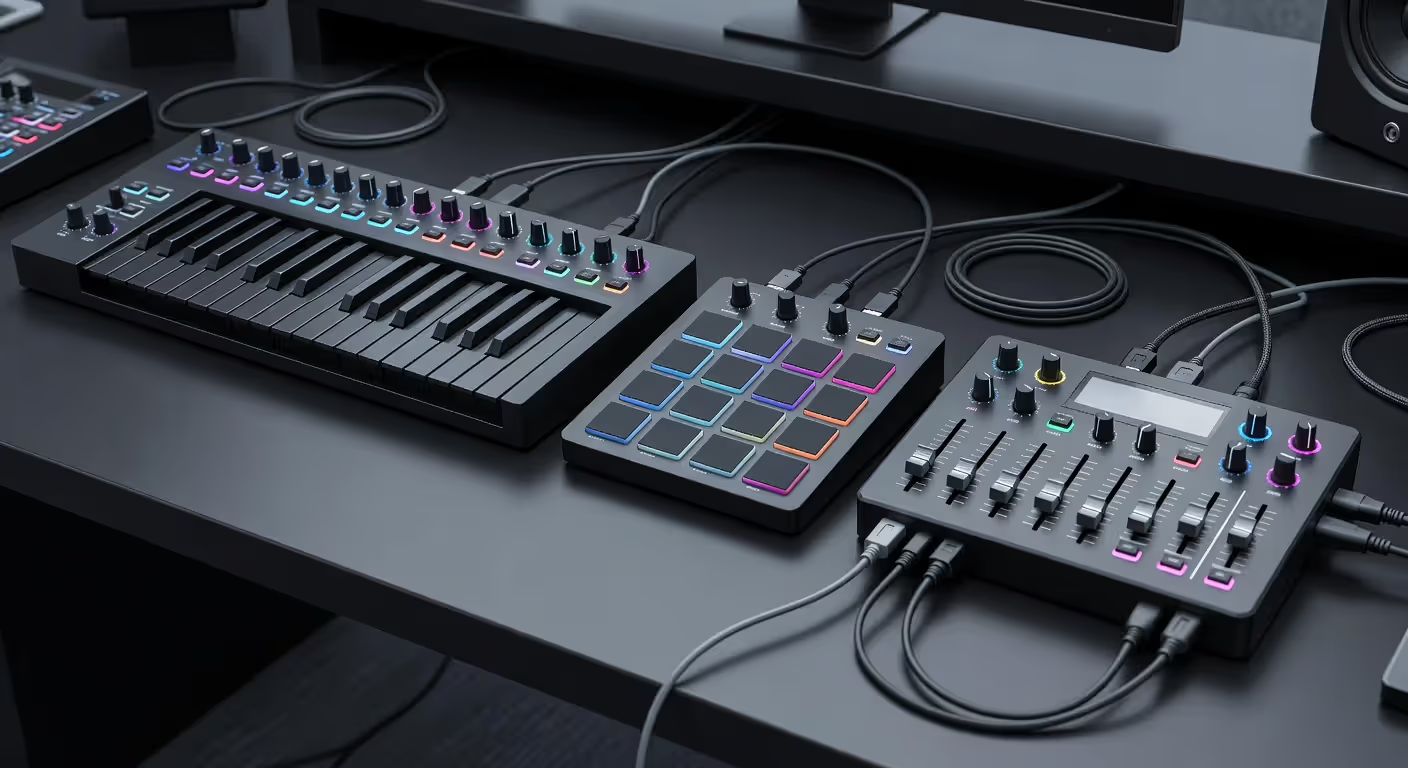
MIDI controllers come in countless forms, but they all share one purpose: converting your physical gestures into MIDI messages.
MIDI keyboards are the most common. They range from 25-key portable controllers to full 88-key weighted models that feel like acoustic pianos. The keys themselves don't make sound—they're just sophisticated switches that measure how fast you press them (velocity) and send that data out.
Drum pads translate hits and taps into MIDI note data. Pad controllers like the Akai MPC series or Native Instruments Maschine let you finger-drum patterns, trigger samples, or program beats. Velocity sensitivity matters here—you want pads that accurately capture the difference between soft taps and hard hits.
Control surfaces might not have traditional keys at all. They feature knobs, faders, and buttons that send MIDI CC (Continuous Controller) messages. These are perfect for adjusting plugin parameters, mixing, or controlling DAW functions without touching a mouse.
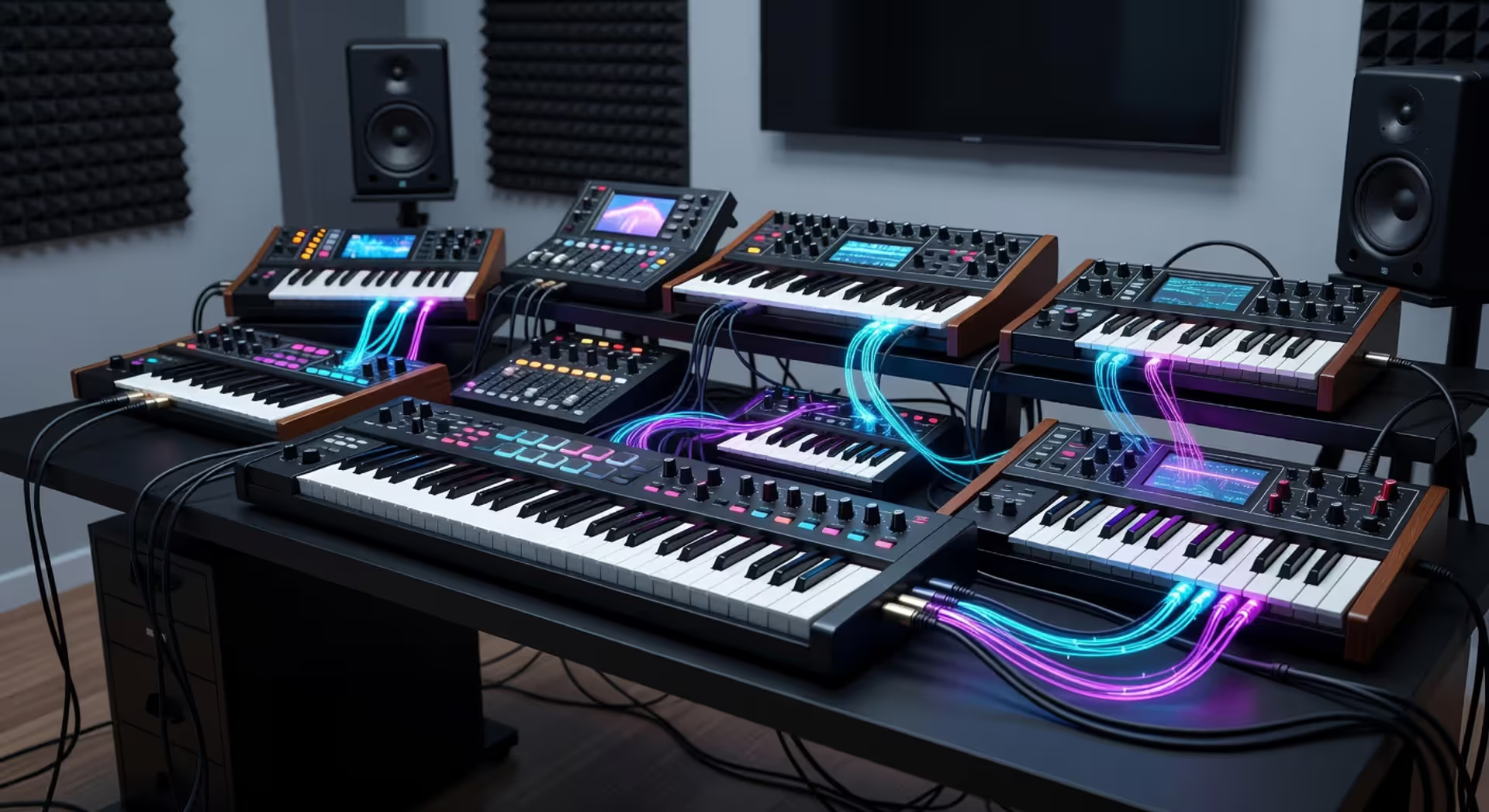
Hardware synthesizers often function as both MIDI controllers and sound generators. You can use their keyboards to control other devices while also using them for their internal sounds.
Author: Miles Arbordale;
Source: lamat-records.com
Connection types have evolved significantly:
5-pin DIN MIDI cables are the original standard from 1983. They're still found on most professional hardware. These cables are unidirectional—you need separate cables for MIDI In and MIDI Out. They're reliable, immune to most electrical interference, and work with legacy equipment.
USB MIDI is now standard on most controllers. A single USB cable provides power and bidirectional MIDI communication. It's plug-and-play on modern operating systems—no drivers needed in most cases. USB also supports higher data rates than traditional MIDI, though this rarely matters for typical use.
Wireless MIDI uses Bluetooth or proprietary protocols to eliminate cables entirely. Latency is slightly higher than wired connections, but modern implementations have reduced this to acceptable levels for most playing styles. Battery life becomes a consideration you don't face with wired controllers.
MIDI interfaces bridge the gap between traditional 5-pin MIDI gear and your computer's USB ports. If you're working with vintage synthesizers or multiple hardware devices, a multi-port MIDI interface gives you the inputs and outputs you need.
Reading and Processing MIDI Note Data
When your DAW receives MIDI input, it's reading a stream of data packets. Each note you play generates at least two messages: note on and note off. But there's more information packed into those messages than just "play this note."
Pitch is represented as a number from 0 to 127. Middle C is note 60. Every semitone up adds one, every semitone down subtracts one. This numerical system makes transposition trivial—just add or subtract from all note numbers.
Velocity measures how hard you struck the key, also on a 0-127 scale. Velocity 1 is the softest possible note; velocity 127 is maximum force. Many virtual instruments use velocity to control not just volume but also timbre—hitting harder might trigger brighter samples or add harmonic content.
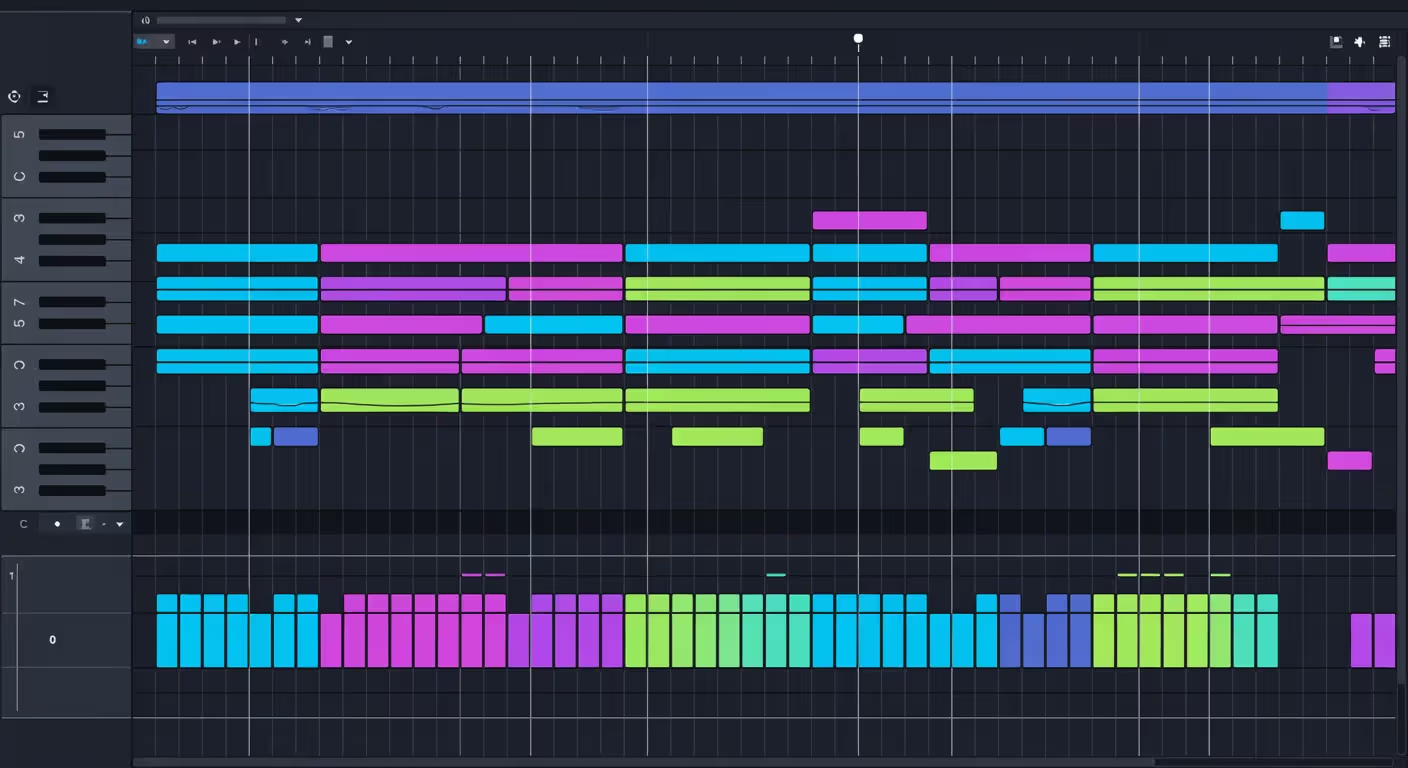
Duration isn't a single message—it's the time between note on and note off. Your DAW measures this and displays it as note length in the piano roll. You can stretch or shorten notes after recording without affecting pitch or velocity.
MIDI channels let you send different data streams over the same connection. There are 16 channels, so one cable can control 16 different instruments independently. Each message includes a channel number, and receiving devices can filter for specific channels.
CC (Continuous Controller) messages handle everything that isn't notes: modulation wheels, sustain pedals, expression pedals, breath controllers, and knobs. There are 128 possible CC numbers, each assigned to specific functions (CC 1 is modulation, CC 7 is volume, CC 64 is sustain pedal, etc.). You can also use undefined CC numbers for custom mappings.
DAWs display MIDI note data in piano rolls—horizontal grids where time runs left to right and pitch runs bottom to top. Each note appears as a colored bar. You can click and drag to move notes, resize them to change duration, or adjust velocity with vertical bars.
The pattern that makes MIDI powerful: everything remains editable. You can record a performance, then perfect it note by note. Quantize to tighten timing. Humanize to add natural variation. Transpose sections. Copy and paste musical phrases. This non-destructive editing is impossible with audio recordings without complex time-stretching and pitch-shifting that degrades quality.
One counterintuitive point: more MIDI data isn't always better. Recording with sustain pedal down generates continuous CC 64 messages. Drawing automation for every parameter creates dense data streams. Too much MIDI data can occasionally cause timing jitter or overwhelm older hardware. The best practice is to record what you need, then clean up unnecessary messages.
Author: Miles Arbordale;
Source: lamat-records.com
Troubleshooting MIDI Input Problems
MIDI should just work. When it doesn't, the problem usually falls into a few common categories.
Device not recognized: Your computer doesn't see the MIDI controller at all. Check the obvious first—is it plugged in? Does it have power? Many USB controllers light up when connected. If you're using a 5-pin MIDI connection, make sure you've connected MIDI Out from the controller to MIDI In on the interface (not Out to Out, which does nothing). Check your DAW's MIDI preferences to ensure the device is enabled as an input source.
No sound when playing: The controller is connected, but playing keys produces nothing. This usually means your MIDI track isn't armed for recording, or it's not routed to an instrument. Verify that the track is record-enabled and that you've loaded a virtual instrument or selected a MIDI output destination. Also check that the MIDI channel on your controller matches the channel your instrument is listening to.
Latency and timing issues: Notes feel delayed or sluggish. MIDI latency is usually minimal, but audio processing latency can make it feel like MIDI is slow. Lower your audio interface buffer size to reduce monitoring latency. If you're using wireless MIDI, try a wired connection to see if that's the culprit. Some DAWs also have MIDI input delay compensation settings that can help align MIDI with audio tracks.
Wrong notes or octave: You're playing middle C but hearing a different note. Check for transpose settings on your controller—many keyboards have octave up/down buttons that shift the entire keyboard. Also verify that your virtual instrument doesn't have its own transpose or tune settings engaged.
Driver problems: Windows users sometimes need to install manufacturer drivers for MIDI controllers, even though many work with generic USB MIDI drivers. Visit the manufacturer's website and download the latest driver for your operating system. Mac users rarely face this issue—Core MIDI handles most devices automatically.
Stuck notes: A note keeps playing even after you've released the key. This happens when a note-on message arrives but the corresponding note-off gets lost. Send an "All Notes Off" MIDI message (most DAWs have this function) or just press the stuck key again. If it happens frequently, you might have a flaky cable or connection.
Multiple devices causing conflicts: You've connected several MIDI controllers and they're interfering with each other. Make sure each device is set to a different MIDI channel, or configure your DAW to accept input from specific devices on specific tracks. Most modern DAWs let you filter MIDI input by source device.
The fix that works most often: restart everything. Close your DAW, disconnect the MIDI controller, wait ten seconds, reconnect it, then reopen your DAW. This clears any initialization glitches or stuck states.
FAQ: MIDI Input Questions Answered
Understanding what MIDI input is transforms how you approach music production. You're not just recording performances—you're capturing musical intent in its purest digital form, ready to be shaped, refined, and perfected. Whether you're sketching ideas on a portable keyboard or programming complex orchestral arrangements, MIDI input gives you flexibility that audio alone can't match. The technology has remained remarkably consistent since its introduction, which means the MIDI skills you develop today will serve you for decades to come.
Related Stories

Read more
Read more


The content on this website is provided for general informational and educational purposes only. It is intended to explain concepts related to music production, recording, mixing, mastering, music industry roles, and distribution.
All information on this website, including articles, guides, and examples, is presented for general educational purposes. Results and success in music production may vary depending on skill level, equipment, and effort.
This website does not provide professional music production services or guarantees of commercial success, and the information presented should not be used as a substitute for consultation with qualified music producers, audio engineers, or music industry professionals.
The website and its authors are not responsible for any errors or omissions, or for any outcomes resulting from decisions made based on the information provided on this website.